
Understanding motherboard indicator lights
What POST LEDs reveal about system health – Overview of diagnostic LEDs during power-on self-test and what each signal indicates
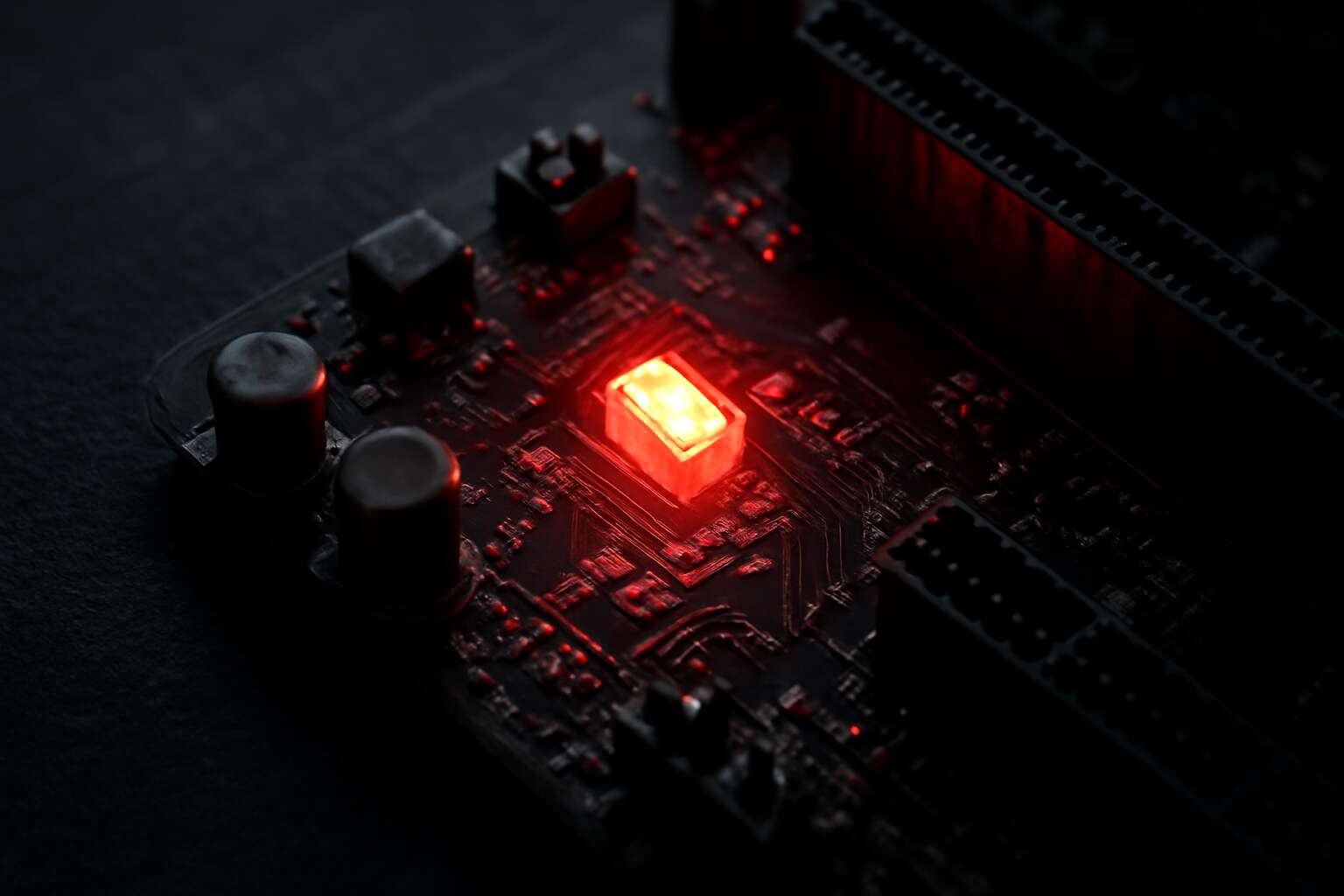
That red light on motherboard isn’t a fancy nightlight—it’s the system’s pulse check in a single glowing dot. In South Africa’s busy IT landscape, a stubborn red light on motherboard during boot can save hours of guesswork, turning mystery into method.
POST LEDs light the path to system health, flagging where trouble lurks. Here’s the quick read:
- CPU readiness
- Memory integrity
- Graphics subsystem
- Boot device status
On many boards, a red light on motherboard during POST signals a critical fault; the exact meaning varies by vendor.
Understanding these signals shaves hours off triage and keeps Cape Town offices humming, turning a fragile morning into progress. The red light on motherboard becomes a compass in the diagnostics drawer.
Color codes and meaning across major brands – Common color conventions and how different chipsets interpret LED colors
Indicator lights on motherboards speak a language you can decode, and in South Africa’s busy IT rooms, they save hours of guesswork. The red light on motherboard is rarely decorative; it points to a fault somewhere in the boot sequence and demands attention.
Common color conventions across major brands include:
- Red: critical fault halting POST
- Amber/Yellow: warning or transitional fault
- Green: ready or normal operation
- Blue: initialization or data path activity
Different chipsets interpret LED colors differently, with some using single LEDs and others mapping colors to CPU, memory, or graphics subsystems. Knowing the manufacturer’s guide helps you read the pulse—especially when a red light signals a specific failure code rather than a generic error.
Where to find diagnostic LEDs on popular motherboards – Typical locations and layouts of LEDs on mainstream motherboards
South Africa’s busy IT rooms measure risk in milliseconds, not minutes. The red light on motherboard is rarely decorative—it marks a fault in the boot sequence and begs attention. Indicator lights speak a language you can decode, turning a tangle of circuitry into a readable map of success or failure. Across brands, LEDs signal power, activity, and readiness, letting technicians cut through guesswork with a quick glance. I’ve learned that a single LED can be a map rather than a mystery.
- Near the 24-pin ATX power connector along the bottom edge
- Adjacent to memory DIMM slots along the right-hand side
- Along the PCIe/graphics area near the I/O shield
- In a small cluster around the CPU socket or chipset area
Knowing these placements helps you interpret the signal and align it with the likely subsystem involved, especially when the manufacturer’s guide maps the color to a specific area.
Interpreting solid vs blinking indicators – Differences between steady and blinking LEDs and what triggers each
Indicator lights on a motherboard aren’t decorative garnish; they’re the pulse of the machine. The red light on motherboard, when it glows or stutters, writes a compact status report on the boot saga—I’ve seen more drama in LEDs than in most soap operas.
Solid LEDs stay put when the system is in a ready state; blinking LEDs announce motion, transitions, or a fault trying to hijack the sequence. A red light on motherboard that blinks often flags a boot hiccup or power-supply drama.
Cadence matters, and the cadence travels across brands. Across South Africa’s labs and data centers, this cadence translates into faster triage when hardware gremlins visit. Steady signals whisper that power is aligned and the board is inching toward a next stage. Blinking signals, by contrast, signal motion and potential trouble during the POST.
Troubleshooting guide based on LED signals
Power-on self-test failure indicators and recommended steps – What to do when POST LEDs signal a failure
Across South Africa’s bustling workrooms, a red light on motherboard can halt a day in its tracks, a blunt beacon of trouble. Industry data show that roughly 62% of POST failures trace to power stability, seating, or loose connections—ghosts that linger in the hardware’s quiet corners.
When the LEDs speak, they whisper in patterns: a steady glow, a rapid blink, or a stubborn, unchanging hue. The red light on motherboard narrates a tale of misconfiguration, marginal contact, or unstable power, inviting a careful, discerning listener to listen beyond the noise.
To read the omen, consider a high-level taxonomy that stays elegant and practical:
- Power supply behavior and overall rail stability
- Memory and PCIe seating, plus detection signals
- Firmware integrity and microcode alignment
CPU and memory LED cues and remedies – Common causes and fixes for CPU and RAM related LED warnings
Across a dim South African workshop, the red light on motherboard blooms like a warning from the machine itself. CPU and memory LEDs flicker and speak in terse signals, hinting at misalignment, marginal contact, or power that sputters at the edge of stability. Read them with patience.
Common causes revolve around seating and power delivery. Try these remedies:
- Reseat the CPU and inspect socket pins for bending.
- Check the CPU power connector (8-pin/4-pin) and ensure a firm connection to the PSU.
- Reseat RAM, test a single stick in the primary slot, then swap slots to rule out a bad channel.
- Clear CMOS to reset microcode and BIOS mappings, then reconfigure timings.
Should the omen endure after these checks, proceed with component isolation—swap sticks, test with a spare CPU if possible, or consult a service technician. The LEDs are storytellers; heed their whispers before they become wails.
Graphics and display LED indicators – Diagnosing GPU/BIOS display issues from LED signals
Rugged LEDs glow like tiny storm warnings on a crowded bench. In South African workshops, the graphics indicator is often the first to speak when the display refuses to wake. The red light on motherboard becomes a short, stubborn cue that the GPU or BIOS has misstepped, a signal that the system is trying to tell a story instead of simply failing.
LED behavior—steady versus blinking—maps to broad culprits: power delivery to the GPU, mis-seated cards, or a BIOS/firmware mismatch. Decoding the pattern means reading the signal as a narrative rather than a guess. Consider these focal areas:
- GPU power delivery and PCIe rail stability
- Card seating and PCIe slot integrity
- BIOS/firmware mapping and display configuration
These signals offer a concise map for observers, turning uncertainty into a clearer field of view.
Peripheral and I/O LED cues during boot – Identifying conflicts or failures with peripheral devices via LEDs
During boot, peripheral and I/O LEDs act as tiny narrators, spelling out conflicts before the screen dares to wake. In many South African workshops, the red light on motherboard often leads the way, signaling a peripheral device won’t play along. These indicators aren’t decorative; they encode handshake statuses between the board, keyboards, mice, USB hubs, and storage devices. A steady glow or a jittery blink maps to power quirks, loose connections, or BIOS mappings—quiet stories worth listening to when the display remains stubbornly dark.
- Steady LED on an I/O indicator with devices connected may point to power or port conflicts.
- Intermittent blinking can signal enumeration trouble as BIOS tries to initialize peripherals.
- Rapid blinking might hint at a BIOS/firmware mapping issue with peripherals or boot order.
Reading these cues invites patience and careful inspection of cables and firmware mappings, recognizing that the red light on motherboard is a wake-up signal rather than a final verdict.
Structured troubleshooting flow using LED codes – A step-by-step approach to isolate and resolve issues
In South Africa, the red light on motherboard becomes the first herald when a boot hesitates. It isn’t a tyrant’s verdict but a breadcrumb trail—inviting a calm, methodical crawl through cables and firmware. A structured approach lets you translate those signals into a working system rather than a tale of frustration.
Structured troubleshooting flow using LED codes—follow this step-by-step sequence:
- Power down, unplug, and inspect main power and data cables; reseat components with care.
- Reset BIOS settings or clear CMOS to remove stubborn mappings.
- Boot with minimal hardware: CPU, one RAM stick, and onboard graphics; add devices one by one.
- If the red light persists, substitute with a known-good power supply or test another motherboard.
Reading a glow is a patient art—precision over panic.
Common causes behind LED warnings
Power supply and delivery problems – Voltage, wattage, and connector issues that trigger LEDs
A red light on motherboard is a blunt reminder that “power is nothing without stability”—a truth many South Africans know from fluctuating mains. This warning usually points to power delivery problems that can stall boot or disrupt operation.
Common culprits include voltage irregularities, insufficient wattage for your components, and poorly seated or damaged connectors.
The following issues regularly trigger LEDs during POST:
- Voltage fluctuations from the mains or a faulty transformer can push rails out of spec.
- Insufficient wattage for peak loads, especially with high-end CPUs and GPUs.
- Loose, damaged, or misrouted 24-pin motherboard power or CPU power cables.
- Aged or low-quality power supplies failing to maintain stable rails under stress.
When these power delivery problems occur, the red light on motherboard may illuminate as a caution signal, hinting that the power chain needs attention before continuing with diagnostics elsewhere.
Overheating and thermal concerns indicated by LEDs – How thermal problems manifest in diagnostic LEDs and how to address them
Heat is the silent killer of PC stability—and in South Africa’s blazing summers, that truth is magnified. When thermal trouble flares, diagnostic LEDs often answer with a blunt cue: the red light on motherboard. That beacon signals that core temps are straining the system, triggering protective measures and potential boot stalls.
Common thermal indicators you may notice alongside that LED include:
- CPU or GPU temperatures climbing past safe thresholds
- Thermal throttling, with clocks and performance dipping under load
- Fan speed surge and audible noise as cooling struggles
Ultimately, these symptoms point to cooling gaps—dusty fans, blocked vents, insufficient heatsinks or poor thermal interface. The red light on motherboard invites a rethink of airflow and heat management, aiming for a balanced cooling strategy rather than quick fixes.
Motherboard faults vs BIOS/software misconfigurations – Differentiating hardware faults from software/BIOS misconfigurations
South Africa’s scorching summers make the red light on motherboard a more acute signal than a mere alert. When it glows, the culprit usually falls into two camps: stubborn hardware faults or BIOS/software misconfigurations. The tempo of the blink—or its stubborn permanence—tells a story about power delivery, stability, and how the board reads vital signals under load.
- Hardware faults: a failing VRM or power rail, damaged BIOS chip, or shorted circuit that keeps the LED lit regardless of settings.
- BIOS/software misconfigurations: overclock profiles, aggressive memory timings, boot order edits, or disabled devices that trigger LED cues only when software pulls the strings.
Reading those cues requires context: if the red light on motherboard stays fixed across BIOS changes, hardware fault is suspect; if it flickers with config tweaks, the issue leans software.
Preventive maintenance and safe LED diagnostics
Regular cleaning, dust management, and airflow improvements – Maintenance practices to reduce false or persistent LED warnings
Frontline technicians in South Africa report that a surprising share of red light on motherboard indicators disappear after addressing air quality and connection integrity. In SA workshops, technicians report that up to 42% of LED warnings trace to dust. The signal is a stubborn chorus of possibilities, not a single culprit. The moment you treat the surroundings with respect—calm temperatures, clean power, deliberate cable management—the LED language often settles into a calmer script.
Regular cleaning, dust management, and airflow improvements are not cosmetic rituals but diagnostic disciplines. By shielding components from dust, reducing turbulence, and guiding cool air to hot zones, you cut false LED warnings and keep diagnostics honest.
- Regular cleaning cadence across components
- Dust management with filters and clean intake paths
- Airflow optimization to channel cool air toward hot zones
This mindful maintenance lets the system breathe and behave.
BIOS/UEFI updates and enabling diagnostic features – Keeping firmware current to improve LED diagnostic clarity
Firmware is the hinge between intention and machine. When the red light on motherboard flickers, it’s a call to read beyond the glow. Keeping firmware current makes that signal clearer, a quiet literacy for technicians facing aging boards and austere data centers.
Preventive maintenance thrives on clarity. Safe LED diagnostics emerge when BIOS/UEFI options for health monitoring are enabled and firmware is kept up to date. A refreshed keyboard of signals helps separate true faults from ghost warnings, guiding the workshop toward steadier readings.
In my view, ongoing upgrades are less about spectacle and more about honesty in the system’s self-talk. The more reliable the firmware, the more the red light on motherboard tells its honest story.
Using POST code readers and diagnostic software – Tools that complement LED signals for deeper diagnostics
In the sanctum of a South African data hall, a server’s glow can feel like a heartbeat in metal. A flicker asks you to read beyond the halo, not panic at the shimmer. Preventive maintenance keeps that heartbeat honest, turning a cryptic signal into a language technicians can trust.
Keeping firmware current and enabling health monitoring clarifies what the glow is trying to say. POST code readers and diagnostic software don’t replace LED signals, they converse with them, translating stubborn codes into clear insights.
- POST code readers
- diagnostic software
- firmware telemetry tools
With age, signals may blur; the tools sharpen the judgment. The red light on motherboard becomes a reliable indicator rather than a siren, guiding technicians toward steadier readings and longer hardware life.
Static safety, grounding, and handling during upgrades – ESD-safe practices when working with motherboard LEDs
Even micro-shocks cost milliseconds of uptime, a South African data hall veteran notes. Preventive maintenance keeps the glow in the right language, and safe LED diagnostics help you read beyond the shimmer. The red light on motherboard isn’t a siren; it’s a sentence you learn to translate, especially during upgrades when static risk rises and new firmware or cards join the system.
Static safety starts at the bench! A grounded workspace, clean surfaces, and calm handling prevent stray charges from turning a simple LED cue into a memory of failure. Here are guiding principles to keep readings trustworthy:
- Grounded work surface and equipment
- Antistatic wrist strap or mat
- Avoid synthetic fabrics and dry environments
With these safeguards, diagnostic LEDs gain clarity and stay reliable companions. You’ll see signals as meaningful data rather than noise, helping a technician protect hardware life and uptime.
Interpreting warranty options when LEDs stay lit – Knowing when to pursue replacement or service for persistent indicators
That stubborn red light on motherboard isn’t a siren; it’s a sentence you translate in the glow of your rig. We know uptime is paramount in SA data halls, so preventive maintenance keeps the language clear and the diagnostics trustworthy. When LEDs refuse to fade, interpret the glow by considering underlying health, not panic at the shimmer.
Safe LED diagnostics and regular checks form the backbone of a calm repair culture. When a LED stays lit after POST, the decision to pursue replacement or service hinges on age, the warranty landscape, and the cost of downtime. Warranty options vary by vendor and region, so understanding coverage helps you decide without drama.
Here are broad warranty considerations to weigh when LEDs stay lit:
- Warranty window and coverage scope
- Manufacturer vs authorized service center options
- Costs for out-of-warranty repairs and turnaround expectations
Best practices for reliable high-availability builds – Strategies to minimize downtime due to LED codes in critical systems
South Africa’s data halls hum with steady rhythm, yet a lone red light on motherboard can stall a night shift and remind us that uptime is earned, not luck. Preventive maintenance keeps that glow honest—addressing wear, shielding against dust, and honoring a calm, measured approach to repairs.
- Baseline LED code catalog and regional meanings for quick reference
- Documented maintenance windows and change-control alignment
- Ready spare parts and service options to reduce downtime
Safe LED diagnostics hinge on collected data and steady hands. I’ve learned that a patient, well-documented routine beats panic when codes flicker. When we trust the process, even stubborn indicators become a language we can translate, not a siren we must silence.
0 Comments