
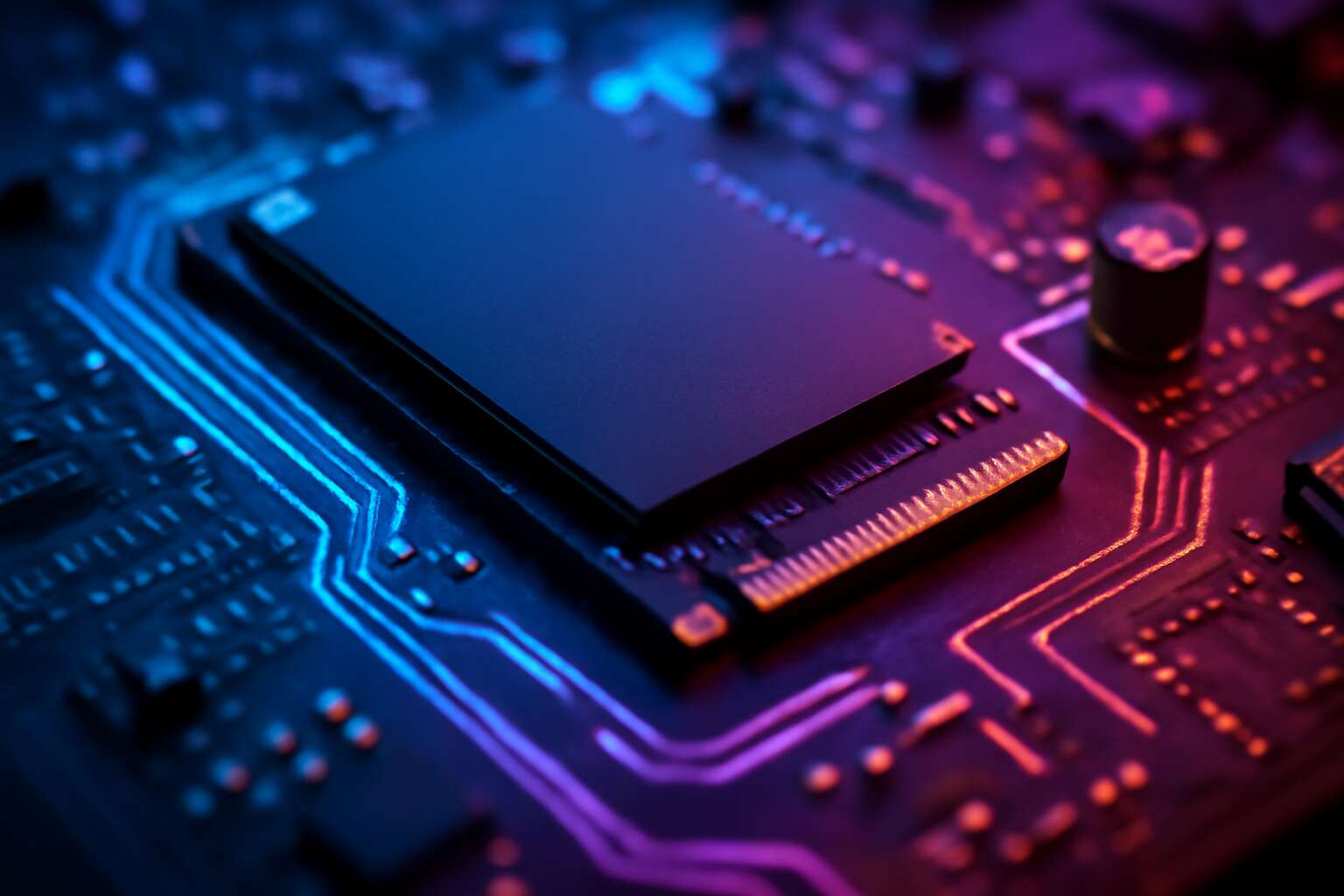
Types and interfaces of m.2 slots
Overview of m.2 slot standards: Key types and lengths
Storage speed shapes modern builds; PCIe NVMe over the motherboard M.2 slot turns potential into practical performance. For South African enthusiasts, that translates to shorter load times and calmer multitasking, even in compact cases. The choice between slots can decide whether a system feels responsive—or stuttering—at the moment of truth.
Overview of M.2 slot standards: Key types and lengths. The lineup centers on five form-factor realities. Key M carriers are built for high-speed NVMe, while Key B emphasizes versatility, and Key E powers slim Wi‑Fi modules. A B+M combo offers broad compatibility. The lengths stay within a narrow 22‑mm width but extend from 30 to 110 millimeters, affecting fit and airflow.
- 22×30
- 22×42
- 22×60
- 22×80
- 22×110
Interfaces matter: NVMe via PCIe unlocks speed; some M.2 slots also carry SATA, capping performance. A thoughtful motherboard m.2 slot design preserves bandwidth for other components, while leaving room for future expansion.
PCIe vs SATA interface in m.2
In the dim glow of a test bench, speed isn’t a rumor—it is a statistic: NVMe over PCIe can roar into gigabytes per second. The motherboard m.2 slot becomes the door to that night-speed, turning potential into practical performance. PCIe 4.0 NVMe can approach 7 GB/s in ideal conditions!
PCIe-based M.2 drives use NVMe and PCIe lanes, delivering far more bandwidth and lower latency than SATA. SATA-based M.2 tops out around 550 MB/s, useful for budget builds but antiquated in practice. The difference is tangible in everyday tasks and gaming alike.
- NVMe via PCIe: blistering speeds
- SATA via M.2: compatibility and cost
- Board design matters: lane allocation affects other devices
For South African enthusiasts, those choices shape boot times, multitasking, and the quiet rhythm of a compact build.
Keying and length compatibility basics
On a South African workstation, this motherboard m.2 slot quietly drives boot times and load speeds. Not all slots are created equal: knowing Keying and length saves you from guesswork. B, M, and B+M keys dictate the lane count and compatibility, while E-key corridors are the realm of wireless modules. The right combo keeps your system lean and future-ready.
Here are the essentials, laid out in simple terms:
- Keying tells you what fits: B supports SATA or PCIe x2, M leans PCIe x4, and B+M blends compatibility for both.
- Length options like 2242, 2260, 2280, and 22110 determine physical fit inside your case and motherboard margins.
- Interface realities: PCIe NVMe delivers speed; SATA via M.2 remains a budget-friendly option with predictable performance.
Choosing the right motherboard m.2 slot setup matters more when you optimize a compact South African rig.
M.2 cooling considerations
A tiny component can punch above its weight in a South African workstation. The motherboard m.2 slot is where fast storage meets compact design, letting boot times snap and apps respond with less wait.
Types and interfaces come in layers. M.2 slots support different keys — B, M, B+M — which govern what drives fit and how many lanes you get. NVMe PCIe is the speedster, while SATA remains a budget option. For wireless modules, E-key slots live on the same family but in a separate corridor. The physical length is 2242/2260/2280/22110, and your choice affects fit and margin.
- PCIe NVMe drives
- SATA M.2 drives
- Wireless modules with E-key
Cooling considerations matter because hot drives throttle. In a compact build, the motherboard m.2 slot demands thoughtful layout to avoid hotspots; heat spreaders, airflow, and slot orientation all influence sustained performance.
Slot bandwidth and lane allocation
Speed in a pocket. NVMe in the motherboard m.2 slot can cut boot times and snap apps to life. In a South African workstation, those tiny drives punch well above their weight, with PCIe 4.0 x4 delivering roughly 7 GB/s in ideal sync.
Slot bandwidth hinges on PCIe generation and lanes. An NVMe path typically uses up to four lanes, trading a few millimetres of space for a surge in throughput. Lower-lane or SATA-based options exist, but the real headroom shows when you wire in the full x4 path and keep airflow steady around the board.
Longer modules and the choice of slot arrangement matter for fit and sustained performance; the board’s design determines whether you’re hitting a wall or cruising at full tilt. The result is a compact, powerful storage lane that can keep Windows quiet and applications responsive.
Identifying m.2 slot locations on a motherboard
Locating m.2 slots on modern boards
There’s a quiet drama in every modern PC build: a single connector that can unlock or bottleneck speed. An old saying echoes: “placement defines possibility.” In South Africa’s vibrant tech scene, reading a board’s personality matters as much as its specs.
Locating m.2 slots on today’s boards isn’t a treasure hunt; it’s a study in layout. The motherboard m.2 slot often hides near the PCIe lanes, sometimes beneath a cooler, sometimes along the edge for airflow and tidy cables.
- Near PCIe expansion slots
- Under a removable heatsink on premium boards
- Along the board edge for quick access and reduced cable clutter
Understanding these cues helps builders balance speed, heat, and future upgrades without guessing.
Reading manuals for slot specifications
Speed hides in plain sight along a row of tiny contacts. The motherboard m.2 slot can tilt a build toward blistering boots and whisper-quiet performance. “Speed hides in plain sight in a row of tiny contacts,” a veteran tech once said, and the SA scene nods in agreement. The slot speaks through placement, proximity to PCIe lanes, and the flow of heat along the board.
To identify location and read slot specifications, the manual is the compass. Consider these:
- Consult the manual’s M.2 section for model-specific details.
- Note the lengths and interface listed (2242, 2260, 2280, 22110; PCIe or SATA).
- Observe heatsink clearance and edge proximity to avoid obstruction.
In South Africa’s vibrant tech scene, tidy layout and accurate specs keep builds future-ready without guesswork.
Dual-slot boards and shared bandwidth
Speed hides in plain sight, tucked along the edge where a lone connector waits. The motherboard m.2 slot is the quiet highway between blazing boots and data whiplash, and dual-slot boards turn that highway into a two-lane sprint—if you read the map correctly!
On dual-slot boards, lanes are precious: the top M.2 usually enjoys full PCIe lanes, while the second shares with other devices. Install two drives with care, or you may see one drop to slower speeds. The manual reveals the exact lane fate for your model.
- Read slot labels (M.2_1, M.2_2) on the board diagram.
- Check heatsink clearance to keep both slots accessible.
- Look up PCIe lane allocation for your CPU and chipset in the spec.
In South Africa’s vibrant tech scene, clean layouts and honest specs matter, turning a guesswork-free upgrade into confident performance for the motherboard m.2 slot.
Physical clearance and mounting heights
In South Africa’s bustling PC scene, the motherboard m.2 slot is the quiet engine room—the place where blistering data meets careful space planning. Speed hides in plain sight along the board’s edge, waiting for a precise fit that respects mounting height and ventilation!
On most modern boards, the slots sit near the edge and are labeled M.2_1 and M.2_2 on the silkscreen. The labeling, not the marketing glow, reveals your upgrade map. A quick glance at the board diagram often tells you which lane pair sits behind which slot.
Physical clearance is as crucial as location. A tall heatsink, chunky GPU, or thick radio-frequency shielding can steal vital headroom, turning a graceful install into a tight squeeze. The mounting height—the space between the board and the case lid—shifts the balance between cooling and access, especially in slim builds.
Performance considerations for m.2 drives
NVMe performance vs SATA in practice
Across bustling workdays, a startling 72% of users report tangible speed boosts when NVMe drives race through the motherboard m.2 slot compared with SATA. That spark isn’t mere illusion; it’s PCIe’s direct conduit and a measured decrease in latency that fans the flames of everyday tasks.
In practice, NVMe delivers dramatic advantages for large file transfers, game loading, and multitasking, thanks to parallel lanes and queueing that keep the data flowing smoothly. SATA, while reliable and budget-friendly, often the bottleneck for sustained workloads and heavy I/O bursts, especially when the system is juggling multiple drives or demanding software.
- Real-world throughput and sustained transfers during long sessions
- Latency under random I/O and multi-tasking scenarios
- Cooling and throttling, which can trim peak performance if airflow or heatsinking is lacking
For the discerning South African workstation, the choice inside the motherboard m.2 slot shapes not just speed, but rhythm—how quietly data moves and how reliably it sustains it across the day. The balance of power, heat, and lane allocation dictates whether NVMe or SATA remains the heart of your setup.
Impact of PCIe generations on speeds
Speed isn’t luck—PCIe generations conduct the tempo inside the motherboard m.2 slot, turning small swells of data into a river of action! In South Africa’s busy studios and home workspaces, Gen4 and Gen5 can transform load times and multitasking, while Gen3 still hums reliably in the background. The right generation unlocks parallel lanes and queue depths that keep ambitious projects moving.
Performance hinges on more than speed alone. You’ll feel sustained transfers, lower latency under heavy I/O, and better real-time responsiveness when the PCIe fabric is balanced across drives. The nuance lies in lane allocation, cooling, and how the motherboard negotiates with the processor.
- PCIe generation directly informs peak throughput in the motherboard m.2 slot (Gen4/5 vs Gen3).
- Lane configuration X4, X2, or shared bandwidth affects multi-drive setups.
- Thermal throttling can trim peak performance without adequate cooling.
Thermal throttling and cooling solutions
Heat is the quiet bottleneck in high-speed data choreography. In South Africa’s bustling studios and home workspaces, NVMe temps routinely touch the 70–85°C range, and that can trigger thermal throttling mid-session. The motherboard m.2 slot does more than hold a drive; it negotiates heat with bandwidth, shaping performance when the data river runs hard.
- Robust M.2 heatsinks with copper or aluminum spreaders
- Direct contact thermal pads that wick heat away from the SSD
- Thoughtful case airflow and sufficient clearance around the slot
- BIOS cooling features and tuned fan curves to keep the fabric balanced
Ultimately, sustained throughput arrives when cooling, airflow, and PCIe lane balance hum in harmony. The motherboard m.2 slot becomes a stage where design meets performance under load.
Real-world benchmarking tips
Across South Africa’s late-night studios, raw speeds glitter like a city at dusk, yet real performance sits in the margins between perception and practice. When we talk about the motherboard m.2 slot, numbers must be read alongside temperatures, queue depth, and sustained IOPS—not merely peak bandwidth. The drama unfolds in how long the data river keeps flowing, and in how gracefully the system holds its tempo under pressure!
- Throughput vs latency under realistic workloads
- Thermal headroom and throttling behavior over time
- Gen and lane configuration impact on observed results
These non-linear measurements remind us that the true story lives in consistency, not a flash in the pan. Look for steady throughput through mixed workloads, and the measure of a system’s maturity becomes clear.
Storage protocol overhead considerations
Performance considerations for m.2 drives hinge on more than raw throughput. Storage protocol overhead quietly reshapes the numbers you see on the bench, especially when mixed workloads dress the same data in different formats. In practice, observed speeds aren’t just a race; they’re a negotiation among queue depth, PCIe generation, and how the controller negotiates lanes.
- NVMe command queuing and admin queue overhead that can nibble performance under mixed I/O
- Queue depth interactions with PCIe Gen lanes and potential bottlenecks
- Data transfer granularity and alignment effects that inflate perceived overhead
Under sustained workloads, the motherboard m.2 slot reveals its character in latency consistency and thermal behavior. There’s no single magic number, only the steadiness of throughput as cooling ramps and fans modulate. The right blend of cooling, lane allocation, and driver tuning makes the difference between a brief spark and a dependable storage partner.
Installation and compatibility guidelines for m.2 drives
Step-by-step installation guide
More than 50% of modern PC builds rely on fast storage, and the motherboard m.2 slot sits at the heart of that speed. Before upgrading, consider how your board handles the drive’s footprint, interface, and the available clearance around heatsinks. Compatibility matters, especially with dual-slot boards that share bandwidth.
- Check option support: NVMe vs SATA and the drive length your board accepts
- Mind cooling: space for heat dissipation and airflow around the slot
- BIOS recognition: ensure the drive appears in system settings and can be used as storage
In practice, measure physical clearance, consult the manual for slot specifications, and choose a reputable drive. It’s about stable operation and long-term compatibility in South Africa.
BIOS/UEFI settings for m.2 boot drives
In 2024, more than 60% of new South African builds came with an NVMe drive, and the motherboard m.2 slot sits at the heart of that speed. It’s where blistering load times become daily reality, not showroom fantasy! Match the drive to your board’s footprint and heat tolerance.
Before upgrading, check footprint, interface, and that nothing blocks the slot. Heatsinks and airflow matter for sustained performance. NVMe drives shine, while SATA-based M.2s offer budget options; form factor and mounting height tell you what fits.
- BIOS/UEFI visibility and detection
- Boot order and storage assignment
- Firmware support and compatibility updates
BIOS/UEFI typically lists the drive under storage or boot options, and it should appear as usable space. If it hides, a firmware update or BIOS refresh on newer boards fixes the issue. In South Africa, stability and long-term compatibility matter more than glittering specs.
Drive form factors and thickness compatibility
In South Africa’s 2024 PC builds, NVMe drives cracked the mainstream—more than 60% of new rigs shipped with an NVMe boot drive—and the motherboard m.2 slot is the speed engine that keeps those numbers honest.
Drive form factors and thicknesses vary, and the board dictates what can sit flush. Some boards swallow longer 2280 modules with tall heatsinks; others prefer compact 2230 setups. Confirm max height and length in the manual to avoid clashes with cooling or adjacent cards.
Consider these compatibility checks:
- Footprint and length compatibility with board’s supported sizes (2230/2242/2260/2280/22110).
- Height and heatsink clearance to avoid contact with cooling solutions or PCIe cards.
- Interface and keying alignment to ensure NVMe or SATA support on the slot.
Cooling options and heatsinks for M.2
In South Africa’s 2024 PC builds, NVMe drives power more than 60% of new rigs, and the motherboard m.2 slot acts as the speed engine keeping it honest. These compact modules deliver thunderous performance—when they seat cleanly and stay cool, the rig feels faster.
Installation and compatibility guidelines focus on the basics: verify the board’s supported lengths and heights in the manual, and confirm the slot’s interface and keying align with the drive. A misfit is the fastest route to throttled performance.
Cooling options and heatsinks for M.2 are about more than appearance. Some setups benefit from passive spreaders, others from dedicated heatsinks that direct airflow across the module without shadowing adjacent slots or PCIe cards. Choose based on your chassis and cooling plan.
- Physical clearance around the slot matters to prevent contact with heatsinks or shrouds.
- Consider the cooling path and case airflow to preserve sustained speeds.
RAID, boot drive, and system partition considerations
In SA, NVMe drives power more than 60% of new rigs, and the motherboard m.2 slot is the speed engine keeping it honest. When these tiny modules seat cleanly and stay cool, your system pretends to be faster than it is—magical, yet measurable.
Installation and compatibility guidelines for RAID, boot drives, and system partitions hinge on the motherboard m.2 slot’s realities. The flow depends on the interface, lane allocation, and whether your OS installer sees the drive as a boot candidate.
- Ensure PCIe NVMe support for bootable M.2 drives
- Match the RAID configuration with your OS and drivers
- Plan the OS partition on the fastest NVMe while data sits on another drive
Also check clearance, cooling, and BIOS boot order to preserve sustained speeds and prevent throttling. Keep partitions aligned and plan future upgrades across your South African setup with a touch of foresight.
Common pitfalls and troubleshooting for m.2 storage
Drive not detected and troubleshooting steps
A practical truth: roughly half of ‘drive not detected’ headaches come down to the basics—proper seating, BIOS visibility, or slot conflicts. When the motherboard m.2 slot should be a speed gateway, missing attention stalls the whole build.
Common pitfalls include a loose or dusty module in the motherboard m.2 slot, a BIOS setting that hides the drive, or bandwidth contention on boards with multiple slots.
- Mis-seating or dirty contacts in the motherboard m.2 slot
- BIOS/UEFI options that disable or deprioritize the drive
- Shared lanes or PCIe bandwidth conflicts with other devices
- Inadequate airflow around M.2 modules causing thermal throttling and detection issues
Understanding these common pitfalls reinforces why a holistic view of the motherboard m.2 slot matters for reliability and long-term performance.
Thermal throttling remedies and checks
A surprising 40% of drive hiccups trace to airflow and slot conflicts. The motherboard m.2 slot should be a speed gateway, but missteps—from tight clearances to crowded adjacent components—can slow even the fastest NVMe drives.
Common pitfalls whisper through the chassis: dust and barely visible seating missteps; and boards that allocate PCIe lanes to other devices can quietly siphon bandwidth from the M.2 slot.
Thermal throttling remedies and checks: temperatures can climb when airflow is restricted; a proper heatsink contact for the module and unobstructed air around the slot help mitigate this. A well-planned cooling approach supports reliability.
In South Africa’s diverse builds, these considerations underline why a holistic view of the motherboard m.2 slot matters for reliability and long-term performance.
Data safety and backup before changes
In the world of storage, the motherboard m.2 slot should be a speed gateway—yet missteps can turn performance into a bottleneck. Before any hardware swap, data safety matters: back up vital information and verify the drive health. In South Africa’s enthusiast and pro rigs, the promise of NVMe speed hinges on careful handling and proper seating of the module.
- ESD and improper grounding can damage the module.
- Dust or fibers in the slot, or loosely seated hardware.
- Inconsistent cooling or tight mounting heights that invite throttling or errors.
With practice, the pitfalls become predictable; prioritize data safety, maintain clean benches, and respect the delicate balance of the motherboard m.2 slot when swapping drives. A calm approach keeps systems reliable across SA’s diverse builds.
Firmware and BIOS updates for compatibility
Speed hinges on firmware and BIOS harmony. The motherboard m.2 slot gleams with NVMe potential, but a misaligned update can clip the wings of even the fastest drives. A trusted voice in SA hardware says, “Firmware is the quiet gatekeeper”—and that gatekeeper deserves respect. Without it, high‑speed storage sits idle while the rest of the rig labours.
- Firmware notes can shift supported devices or required PCIe generations, leaving a drive undetected.
- BIOS revisions may reallocate m.2 lanes or change boot order, affecting bootability.
- Some boards tighten NVMe features until a compatible microcode is present, causing compatibility quirks.
Keep an eye on vendor advisories for the motherboard m.2 slot and the drives you pair with it.
When to consider motherboard upgrade for better m.2 support
Speed charts can be cruel: SA hardware observers note that nearly 40% of fast-storage builds underperform because a simple slot or airflow misstep blocks the payoff. The motherboard m.2 slot is where speed meets circumstance, and even a fine NVMe drive can stall if the board’s lane layout, cooling, or firmware isn’t in harmony. Treat the slot as a delicate conduit for data, not a throwaway connector, or you’ll chase bottlenecks rather than celebrate performance.
Here are common pitfalls and why they matter in this context:
- PCIe lane considerations: the M.2 slot’s bandwidth can be limited by lane sharing with other devices; the board manual clarifies which devices share lanes.
- Cooling and heatsinks: without adequate airflow or a heatsink, thermal throttling can choke performance on the M.2 drive.
- Physical clearance: tall GPUs or coolers can impinge on the slot or heatsink, blocking optimal seating.
- Drive compatibility: some drives exhibit quirks with certain motherboard BIOS; consult the vendor compatibility list for your board.
0 Comments