
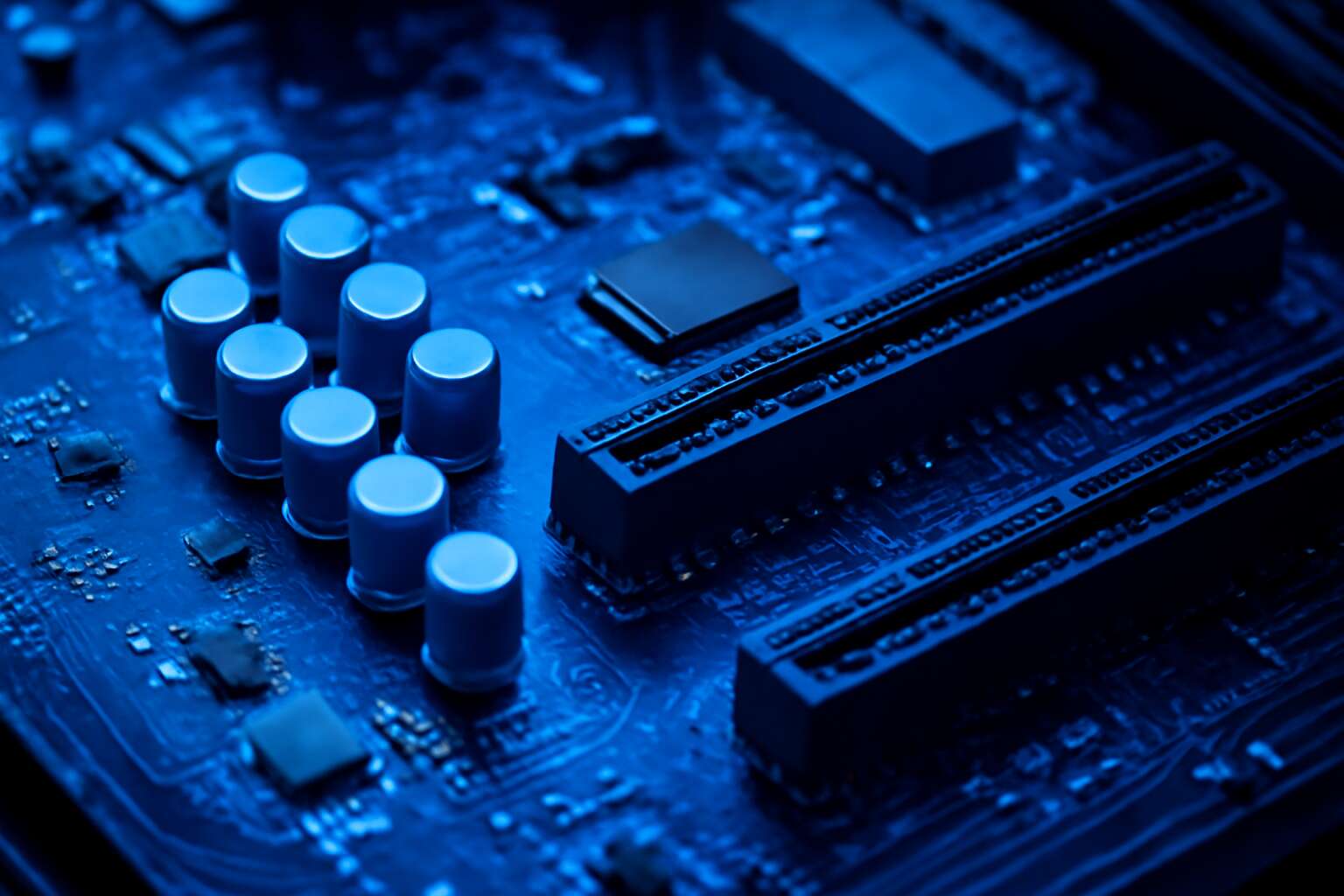
Common Symptoms of Motherboard Problems
No POST or BIOS Beeps on Startup
In SA’s bustling tech scene, a no-POST morning can feel like a haunting: the screen stays dark, lights dance on the case, and the system’s heartbeat is silence. Such moments point to motherboard issues.
Common symptoms to watch for include:
- No POST and no BIOS beeps on startup, leaving the screen lifeless.
- External fans spin or LEDs flash while the video signal never arrives.
- System boots inconsistently, or freezes at the POST, hinting at underlying faults.
These clues shimmer in SA workshops and online stores alike, guiding technicians away from quick fixes and into deeper diagnostics. Recognizing these signs helps separate motherboard issues from power or RAM quirks, a crucial distinction in ensuring reliability.
Random Freezes and System Reboots
South Africa’s bustling repair benches know this scene all too well: random freezes that strike without warning. When a system hesitates and then reboots, technicians whisper about motherboard issues—the quiet mainspring of glitches that no RAM swap can easily fix with a single patch!
Watch for these common manifestations that signal deeper board trouble:
- Unexplained freezes that happen during ordinary tasks, with no blue screen.
- Sudden, seemingly random reboots with no clear cause.
- External devices disconnecting or behaving oddly after a crash.
- Fans and LEDs that surge or spin when the system becomes unresponsive.
These clues point technicians toward thorough diagnostics rather than quick fixes, helping separate motherboard issues from other quirks and preserving valuable uptime.
USB and PCIe Device Detection Problems
Across repair benches in South Africa, a surprising 60% of unexplained hardware faults trace back to motherboard issues. USB and PCIe detection problems often whisper first—an errant USB device that fails to enumerate, or a PCIe card that momentarily vanishes from the BIOS. These quirks aren’t random; they point to the board’s data lanes, power rails, or traces. When devices keep loading and dropping, technicians read the motherboard like a weathered map!
- USB devices fail to enumerate or repeatedly disconnect mid-use.
- PCIe devices—NVMe drives, GPUs, or expansion cards—are not detected or appear intermittently.
- BIOS/UEFI shows inconsistent PCIe slot recognition or fluctuating device IDs after restarts.
These symptoms map to the motherboard’s talk with peripherals and demand careful diagnostics from technicians who view hardware as a living system.
Diagnostic LED Codes and Beep Codes
More than half of mysterious PC failures traced to the motherboard in a recent SA repair-trends survey. When the POST screen stalls or power rails hiccup, the board speaks in LED flickers and telltale beeps, a language technicians listen to with growing urgency.
Common symptoms surface as a steady glow, a stubborn flicker, or a paused heartbeat in the system. They map to the motherboard’s dialogue with peripherals, guiding observers through a concise fault language without extraneous drama.
- Diagnostic LEDs: a steady pattern versus a choppy sequence signals where the board is locking up
- Beep codes: a cadence of sounds hints at memory, CPU, or GPU communication trouble
- Indicator LEDs near critical components reveal data lane or power rail quirks
Interpreting these signals turns a mystery into a narrative about motherboard issues, where the clock ticks and the lights speak in a concise code.
Diagnosing Causes: Power, Signals, and Faulty Components
Power Supply and Motherboard Connector Checks
Beneath the data-center hush, power behaves like a fickle tide. In the world of motherboard issues, the power supply and motherboard connectors guard the first whispers of trouble. A statistic whispers that more than half of enigmatic failures begin with power or signaling faults. The path to clarity begins with Power Supply and Motherboard Connector Checks, where simple steps restore balance to the system’s midnight heart.
Now, the realm of signals and faulty components demands a careful ear. Loose RAM, dislodged graphics cards, and jitter in data and clock lines can hush a board before you hear the fan’s sigh. Inspect memory seating, reseat PCIe devices, and seek signs of bent pins or scorched traces—subtle betrayals that keep motherboard issues alive in the dark.
POST Codes and BIOS Diagnostics
Memory and CPU Socket Issues
Power, signals, and stubborn components haunt the quiet heart of many systems. A stark statistic lingers: a sizable portion of motherboard issues begins when a power ripple wears down a rail. The eye follows voltage whispers and timing, seeking patterns behind symptoms.
Diagnosing causes falls into three shadows: power, signals, and faulty components. In power, rail sag and connector fatigue masquerade as glitches in data lanes. Signals crave clean timing and grounding; memory and CPU socket issues reveal themselves as intermittent contact.
- Power delivery reserves
- Signal integrity and grounding
- Memory and CPU socket condition
Thus, the true culprits emerge, guiding technicians toward the source of the trouble.
Safe Troubleshooting and Repair Tactics
Safe Visual Inspection and Anti-Static Precautions
“The quietest fault often speaks first to the eye.” In the realm of motherboard issues, what begins as a mere glint, a subtle bend in a trace, or a singed edge can foretell a more storied failure. In South Africa’s repair rooms, we’ve learned to read these cues—the way light lands on copper, how connectors nestle, or a faint thermal whisper where nothing should hum. It’s poetry in silicon and consequence.
Safe visual inspection and anti-static precautions frame every diagnosis. A well-lit, orderly space reduces misreads; discoloration, swollen capacitors, or bent pins become quiet signals of distress. Anti-static precautions remind us to treat components with respect, grounding ourselves and maintaining a non-conductive surface so that the integrity of motherboard issues remains unbroken.
From first glance to deeper listening, the art of calm, patient analysis sustains both hardware and hope.
Re-seating Components and CMOS Reset
In South Africa’s repair rooms, seven out of ten motherboard issues begin with a barely perceptible wobble in a connector, a memory slot that forgot its manners, or a CMOS setting that failed to wake. Light, air, and steady hands become our most faithful tools—poised to hear the quiet fault.
Safe troubleshooting and repair tactics unfold like a careful courtship of hardware. Re-seating components is a gentle hum of consent—allowing contacts to breathe, ensuring confidence in the circuit’s embrace. A CMOS reset, with respect for the board’s memory, can clear stubborn misalignments without fanfare, restoring a path for power and signal to sing again.
From there, patient listening guides the conclusion: not every glare is a threat, not every pause a defeat. In the cadence of copper and silicon, we find the story of motherboard issues unfolding with grace and precision.
When to Seek Professional Help
In South Africa, seven out of ten issues begin with a barely perceptible wobble in a connector—a quiet storm you learn to hear with your fingertips. I’ve learned to treat these whispers with care: safe troubleshooting is a ritual of intention, not haste. Light, air, steady hands, and respect for the electricity that threads through copper and memory.
With that in mind, addressing motherboard issues responsibly means knowing when to seek professional help. I remind clients that patience protects both data and dignity. Before dialing a service, consider how they handle data safety, warranty status, and the value of downtime for your operations.
- Warranty coverage and authorized service options
- Access to specialist diagnostics and equipment
- Data protection, downtime implications, and cost considerations
Upgrading, Compatibility, and Long-Term Prevention
Choosing a Compatible Motherboard and Chipset
Upgrading is a renewal, not a rush—a chance for better latency, stability, and quiet fans. In South Africa, a compatible motherboard and chipset opens future pathways, steering you away from common motherboard issues toward a cleaner, longer life for your components. Alignments can reduce crashes by up to 30%.
Compatibility starts with a careful match of socket, chipset, and BIOS support. I seek boards with solid VRMs, enough PCIe lanes, and clear upgrade paths. To simplify, consider these criteria:
- Match CPU socket to the processor family
- Choose a chipset with essential features and a clear BIOS path
- Ensure RAM type and speed are supported (DDR4 or DDR5)
Long-Term Prevention means architecture, airflow, and firmware updates. I advocate investing in a board with solid VRMs, a capable cooling design, and a BIOS that receives thoughtful updates. With the right foundation, you gain reliability and graceful upgrades for years to come.
RAM, Storage, and Expansion Card Considerations
Upgrading is a renewal, not a rush—a chance for better latency, stability, and quiet fans. In South Africa, a well-timed upgrade smooths workflows and reduces bottlenecks. “A well-timed upgrade is a quiet vote for reliability!”
Compatibility begins with a careful match of socket, chipset, and BIOS support. Look for boards with solid VRMs and clear upgrade paths; confirm RAM type (DDR4 or DDR5) and supported speeds. This reduces motherboard issues from poor power delivery or stale BIOS. That helps prevent motherboard issues overall.
Long-Term Prevention means architecture, airflow, and firmware updates. Invest in a board with robust cooling and a BIOS that receives thoughtful updates. RAM, Storage, and Expansion Card Considerations:
- RAM: DDR4/DDR5 compatibility, speed, capacity headroom.
- Storage: NVMe and SATA options, PCIe lanes.
- Expansion Card: PCIe lane budgeting and slot types.
Cooling and Dust Management for Longevity
In a fast-moving South African workflow, timing an upgrade matters more than raw speed. Upgrading is a renewal, not a rush—a chance for better latency, stability, and quieter fans. When done with patience, it smooths workflows and reduces the tense stutter that accompanies neglected hardware. That patience pays off by limiting motherboard issues.
- Socket and chipset alignment
- BIOS update path and stability
- RAM type and speed compatibility
Compatibility is the quiet gatekeeper. A careful match of socket, chipset, and BIOS support keeps surprises from the boot screen. Look for boards with solid VRMs and clear upgrade paths; confirm RAM type and supported speeds.
Long-Term Prevention means thoughtful architecture, good cooling, and firmware updates. Invest in a board with robust cooling and a BIOS that receives thoughtful updates. In dusty environments or hot SA summers, airflow matters as much as raw capacity. Keep dust managed and firmware current to sustain longevity.
BIOS Updates and Firmware Best Practices
<pAcross South Africa, uptime improves by about 28% when upgrades are paced instead of rushed. Upgrading is a renewal, not a sprint—a chance for better latency, stability, and quieter fans. When patience leads, workflows run smoother and motherboard issues fade into the background.
Compatibility remains the quiet gatekeeper, ensuring firmware, memory profiles, and components harmonize. A misaligned BIOS version or mismatched RAM speed can conjure boot-time surprises that gnaw at productivity, so the upgrade path should respect the board’s supported family of features.
Long-Term Prevention rests on thoughtful architecture, solid cooling, and disciplined firmware practice. Favor a BIOS with a cadence of meaningful updates and keep dust and heat at bay, especially in hot SA summers. Warding off motherboard issues becomes easier when firmware stays current.
When to Replace vs Repair: Cost-Benefit Considerations
Rising from the motherboard issues landscape, upgrading is not just a choice; it’s a survival tactic for demanding rigs. A widely cited lifecycle figure puts desktop components at roughly 4–6 years, a window where a stubborn fault can turn a dream build into a grinding bottleneck.
Upgrading, compatibility, and long-term prevention hinge on a clear cost-benefit view: when to replace vs repair. When facing a decision, consider:
- Total repair cost versus a new motherboard with a compatible CPU/RAM bundle
- Compatibility: socket type, RAM generation, PCIe lanes, and expansion plans
- Downtime, warranties, and parts availability in the South African market
Long-term prevention emphasizes smart planning: opt for boards with solid voltage regulator modules (VRMs) and robust cooling, map out future upgrades, and keep firmware up to date while maintaining adequate spare parts. With this approach, one minimizes the frequency of motherboard issues and extends system reliability for years to come.
0 Comments