
Understanding motherboard slots: a comprehensive guide
Overview of motherboard slots and form factors
One in three high-performance builds suffer a bottleneck born from the wrong slot choice; a stark reminder that a PC’s nervous system lies in the slots you select. In motherboard slots explained, form factors map destiny!
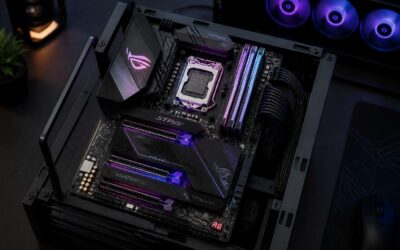
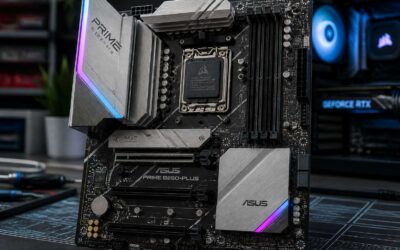
Overview of motherboard slots and form factors shows how expansion, RAM, and storage mingle. The big three—ATX, micro-ATX, Mini-ITX—determine PCIe lanes, DIMM slots, and M.2 placements.
- ATX — full-sized boards with ample PCIe slots and RAM sockets
- Micro-ATX — compact yet capable
- Mini-ITX — small, focused, limited expansion
Choose with patience; the right fit lets your system breathe, even in SA’s heat.
CPU sockets and memory slots explained
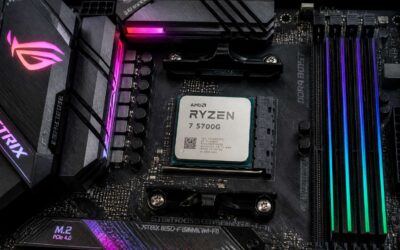
Performance begins with the quiet handshake between a processor and its motherboard. In motherboard slots explained, we zoom in on CPU sockets and memory slots—the two hands that cradle speed and stability. The CPU socket governs which processors fit and how many data channels run at once, while memory slots decide how many DIMMs you can install and at what cadence they cooperate with the memory controller. In SA’s heat, a snug, compatible pairing keeps components cooler and data moving smoothly.
Think of it as a map: sockets come in families (LGA, PGA) and memory slots define capacity, speed, and channel layout.
- Socket compatibility: CPU socket family must match.
- RAM slots: number of DIMMs and supported DDR generation.
- Bandwidth alignment: memory speed with board’s controller.
PCIe expansion slots and their bandwidth
Bandwidth is the quiet negotiator in every build, and the choreography of slots is where speed is hired and silence kept. In motherboard slots explained, PCIe expansion slots and their bandwidth emerge as traffic managers. “The slot is a doorway; bandwidth decides how fast you walk through,” says a veteran engineer—wisdom that still holds on South African workbenches, where space and cooling kiss budget constraints.
Slots wear their personalities as widths and generations. A PCIe x16 slot can carry substantial GPU and high-speed storage duties, especially in Gen 4, which offers about 32 GB/s per direction; x8, x4, and x1 slots spread the rest of the load across add-in cards. The following breakdown helps map the flow:
- x16 — up to ~32 GB/s per direction on PCIe 4.0; ~64 GB/s bidirectional.
- x8 — ~16 GB/s per direction; ~32 GB/s bidirectional.
- x4 — ~8 GB/s per direction; ~16 GB/s bidirectional.
- x1 — ~2 GB/s per direction; ~4 GB/s bidirectional.
Storage interfaces and onboard connectors
Storage interfaces and onboard connectors form the quiet backbone of any PC, and motherboard slots explained reveals the backstage of speed. In practical terms, these pathways decide how quickly a boot completes, how smoothly a dozen tabs stay responsive, and how future upgrades breathe room into the build. For South African shops, clean layout and mindful cabling are as important as raw bandwidth, because space and cooling often dictate choices.
Key players in this arena include:
- M.2 and PCIe NVMe slots for fast storage
- SATA ports for traditional drives and opticals
- USB headers and front-panel connectors for everyday peripherals
Understanding these interfaces helps designers balance performance with cost and space, keeping the system calm under pressure.
Headers, bays, and specialty slots
A good build hums, not shouts. The tiny anchors—the headers, bays, and specialty slots—keep everything in line. “The right connectors are the quiet engineers of speed,” a veteran designer likes to say. For South African shops, neat cabling and logical layouts aren’t vanity; they keep airflow and upgrading simple.
Understanding motherboard slots explained is more than naming pins; it’s reading the room where your components breathe. In this guide, headers, bays, and specialty slots guide practical decisions—space, airflow, and future upgrades.
- Headers: USB, front-panel power, reset pins
- Bays and sockets: internal connectors for drives and add-ons
- Specialty slots: high-speed interfaces and rare expansion options
With that map in hand, you navigate the chassis with confidence, knowing where to tuck cables and which slot accepts the next-generation card without drama.
0 Comments