
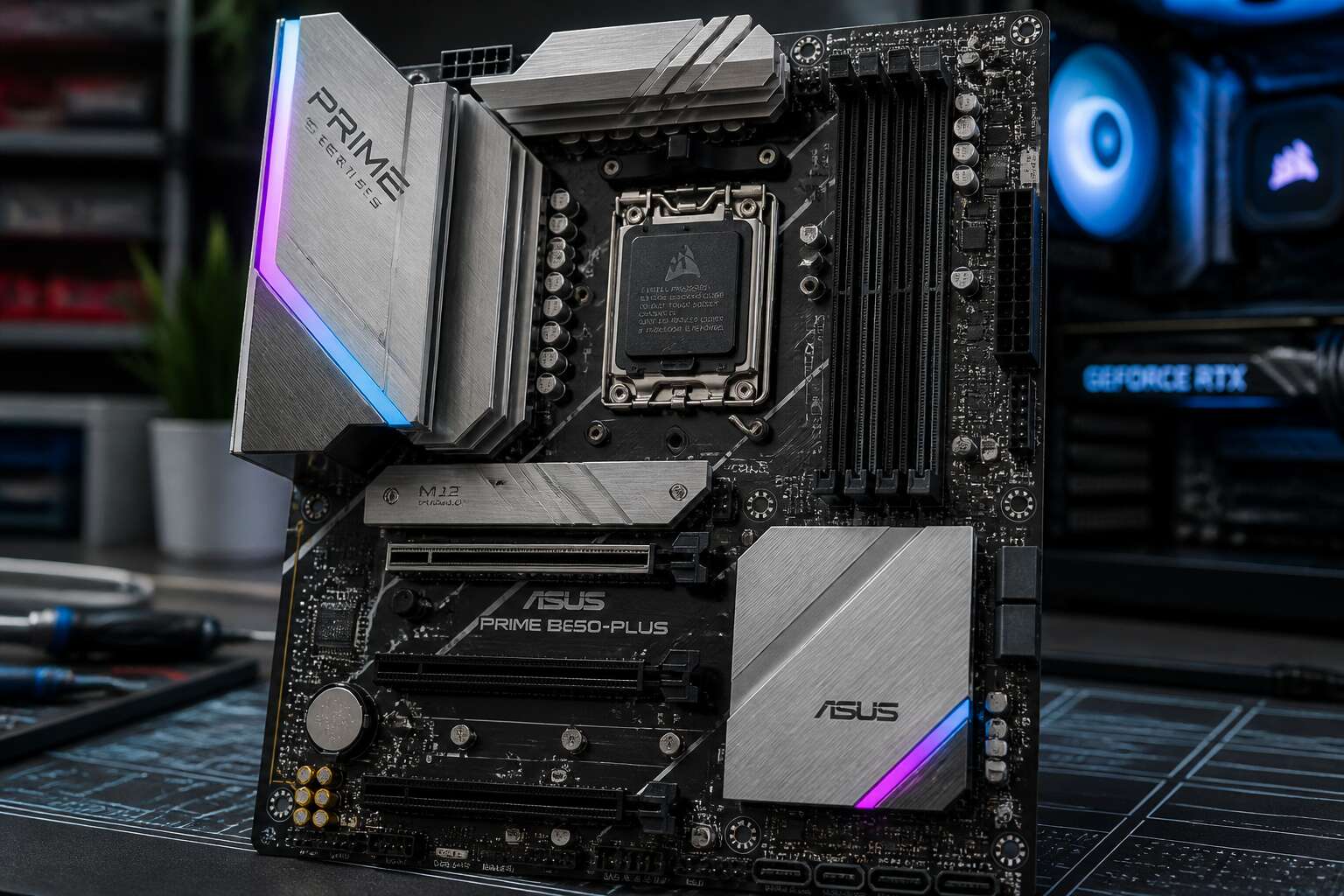
Platform and Processor Fit
Choosing the Right Socket for Your CPU
The socket is the first hard limit on any motherboard. It decides which CPUs you can install, and that decision locks in your upgrade path for years. In 2025, the mid range motherboard market splits between AMD’s AM5 and Intel’s LGA1700, each with distinct trade-offs.
For South African builders, stock availability often dictates the choice more than specs. Retailers carry uneven inventory, so confirm the socket version before you pay. Check these points before committing:
- CPU generation compatibility, especially older chips
- BIOS flashback support for out of the box updates
- Cooler mounting holes, since these differ between sockets
Getting this wrong means a wasted purchase, not a minor mistake. The mid range motherboard offers flexibility, but only if you match the socket to your processor and future plans.
Breaking Down Chipset Differences (B650, B760, etc.)
Chipset naming tells you less than you think. The B650 and B760 labels barely hint at what separates them, and that confusion costs South African builders real money. For a mid range motherboard, the chipset defines your PCIe lanes, USB count, and overclocking headroom, not the CPU socket alone.
AMD’s B650 permits CPU overclocking and offers PCIe 5.0 for the primary GPU slot. Intel’s B760 locks overclocking down and keeps graphics on PCIe 4.0. Each suits different priorities, while storage and bandwidth differ too. B650 boards commonly include:
- PCIe 5.0 M.2 slots
- More USB 3.2 Gen 2 ports
- Better VRM cooling at similar prices
B760 boards lean on mature DDR4 support and cheaper entry points. A mid range motherboard should serve the processor you already own, and the chipset determines whether it actually will.
Memory Compatibility: DDR4 vs DDR5
Check a South African PC builder’s face when they realise DDR5 costs double per gigabyte. Memory compatibility on a mid range motherboard is a commitment many buyers underestimate. AMD’s AM5 platform accepts DDR5 only, while Intel’s B760 boards still serve DDR4 holdouts. The price gap defines the practical choice.
A dual-channel DDR4 kit costs less than a shopping trip, and that saving covers a decent cooler or a second drive. DDR5 offers higher bandwidth, but software that actually requires it remains rare.
- DDR4: mature, affordable, widely available
- DDR5: faster, pricier, gaining ground
The mid range motherboard you select locks this decision in for years. Choose with your existing processor and budget in mind, because memory upgrades are rarely simple.
PCIe Lanes and Bandwidth Allocation
Your mid range motherboard routes a finite number of PCIe lanes, and that allocation demands scrutiny before you commit. On AMD’s B650 platform, the primary PCIe x16 slot runs at Gen 5 speed, but the second slot often drops to x4 electrical or disables entirely when populated. Intel’s B760 boards reserve most of their chipset PCIe lanes for storage expansion, with the processor supplying the first x16 slot for graphics.
Consider what shares the same bandwidth:
- Chipset-connected M.2 slots can disable SATA ports
- A second graphics card frequently halves the primary slot to x8
- USB 4 controllers siphon cycles from the same uplink
The platform and processor fit shapes every upgrade path. A mid range motherboard with balanced lane distribution lets you add storage or capture cards without sacrificing graphics performance, a consideration that matters when import costs make every component a long-term investment.
Board Size and Expansion Potential
ATX, Micro-ATX, and Mini-ITX: Which Fits?
Consider the physical footprint. ATX boards stretch to fourteen inches, granting generous spacing for tall coolers and thick GPUs. Micro-ATX reduces length without losing the crucial top slot. Mini-ITX shrinks everything into a seven inch square, demanding deliberate choices.
For a mid range motherboard, expansion potential depends entirely on this footprint. ATX provides more rear I/O and multiple M.2 slots. Micro-ATX retains most connectivity in a smaller package. Mini-ITX forces a single PCIe slot and limited RAM capacity.
The visible indicators of these limits are straightforward:
- PCIe x16 slot counts range from one to three
- CPU cooler height clearance varies by several centimeters
- Fan header numbers follow board width
A small case constrains you to Micro-ATX; a tower invites ATX. Mini-ITX boards cost more for their size, an odd paradox.
PCIe x16 Slot Arrangement and Bifurcation
The number of PCIe x16 slots on a mid range motherboard can mislead! A board may show three slots, but only one connects to the CPU at full bandwidth. The others often share lanes with M.2 sockets or run at x4 through the chipset.
Bifurcation changes the equation. This feature lets a single physical slot split its lanes into smaller groups. A x16 slot becomes x8/x8 or x4/x4/x4/x4, depending on the BIOS. Mid range boards from brands like MSI and ASUS include basic bifurcation support, but the option depends on the BIOS version.
Check before you buy:
- Does the second x16 slot run at x4 or x8?
- Does installing an M.2 drive disable a slot?
- Does the BIOS expose bifurcation options?
These answers decide whether you can run dual GPUs or a four drive NVMe adapter. Most mid range motherboards handle one GPU plus a capture card. Beyond that, you move into workstation territory.
M.2 Slots: Gen4 vs Gen5, Count, and Cooling
Beneath the cold steel shroud of a mid range motherboard, M.2 slots reveal their limits. Gen5 drives run hot, and their controllers demand airflow that cramped boards rarely provide. Gen4 slots tolerate these conditions with quiet endurance.
Count matters as much as speed. A micro-ATX board may offer two slots, while a full ATX stretches to four. Cooling solutions vary: some slots lie under passive heatsinks, others require active fans. Check each slot’s location relative to the GPU’s exhaust.
- Gen5 slots require robust VRM and case airflow.
- Gen4 slots satisfy most gaming builds.
- Heatsinks often disable adjacent SATA ports.
Choose based on your storage needs, not marketing numbers.
SATA Ports and Legacy Drives
In a cramped chassis, the board’s footprint dictates what else may live. A full ATX mid range motherboard offers more PCIe slots and clearance for bulky coolers, while micro-ATX forces sacrifices. Expansion potential hinges on physical space, not on chipset specifications. SATA ports persist as the quiet remnant of an older era. Most boards still include four to six, though enabling a third M.2 drive often disables half of them. Legacy drives spin slower, but they serve bulk storage without the heat of Gen5.
- Check SATA port sharing with M.2 slots
- Count available headers for fans and USB
- Verify clearance for GPU and CPU cooler
For such a board, these physical realities decide your next upgrade!
Front Panel Headers and USB-C Connectors
The mid range motherboard’s physical footprint still dictates how many expansion cards, fan controllers, and storage arrays you can actually install. Full ATX boards present generous spacing between slots, while micro-ATX layouts often compress headers near the PCIe area. That compression matters when a massive CPU cooler overhangs the top edge, blocking the internal USB-C connector. In South Africa, where imported cases vary wildly in quality, measuring the distance from the motherboard tray to the side panel prevents expensive surprises.
Front panel headers carry more than power and reset switches. The USB-C connector demands specific pin spacing, and many affordable boards relocate it behind the rear I/O instead of the front. Check the manual for the exact position of the front panel audio header, the USB 3.2 header, and the chassis intruder pins. A single misplaced cable turns a clean build into a tangled rat’s nest. The board’s layout, not its chipset, determines whether every front port works as intended.
Power Delivery and System Cooling
VRM Phases, Doublers, and MOSFET Quality
A mid range motherboard may promise twelve power phases, but the hardware behind that number varies widely. Doublers take one controller signal and split it across two phase pairs, reducing component temperature but not increasing current capacity. MOSFET quality matters more than the phase count. Low RDS(on) values waste less energy as heat.
Thermal performance depends equally on the cooling solution above the VRM. Many boards in this class use compact aluminium heatsinks that can saturate under heavy CPU loads. Better options include larger fin stacks or heat pipes that spread heat across a wider area. If the VRM overheats, the PWM controller cuts power delivery to protect itself.
For a mid range motherboard, consider these three factors when reviewing VRM quality:
- The actual phase count before doubling
- MOSFET current rating, usually between 50A and 90A
- Heatsink coverage across all critical components
CPU Power Connectors: 8-Pin vs 8+4 vs 8+8
An eight pin EPS connector supplies enough current for most mid range motherboard builds. The additional four pin and eight pin headers exist for extreme overclocking or power hungry processors. A mid range motherboard often ships with 8+4, giving headroom without demanding a second cable. The 8+8 configuration appears on premium boards, where the VRM can actually use the extra headroom. Most users will never exhaust a single 8 pin. But the connector layout influences cable management and chassis selection.
Here is what each arrangement offers:
- 8 pin: sufficient for standard CPUs
- 8+4: extra margin for heavy loads
- 8+8: reserved for flagship processors
The board with proper VRM cooling performs better than one with many empty connectors and small heatsinks.
Fan Headers and AIO Pump Support
On a mid range motherboard, power delivery depends on sustained current and heat dissipation. VRM cooling matters more than raw phase count. A board with substantial heatsinks over chokes and MOSFETs holds boost clocks longer under load.
System cooling fan headers determine case airflow and radiator control. Most mid range boards include three or four headers. Each header should support both PWM and DC voltage mode. Always check the max amperage per header to avoid overloading.
- CPU_FAN header for the primary cooler
- CPU_OPT or AIO_PUMP for liquid pumps
- SYS_FAN headers for chassis fans
AIO pump support requires a dedicated header that delivers full 12V. A good mid range motherboard offers one. Verify the header can handle the pump’s inrush current. This prevents pump failure and reduces annoying noise.
Heatsink Coverage for VRM and Chipset
Heatsink coverage is where a mid range motherboard often skimps, yet it directly governs thermal throttling. The VRM heatsink must extend across both chokes and MOSFETs, not just surround the socket. Finned aluminium blocks with proper thermal pads transfer heat; missing pads or shallow extrusions cause heat to linger.
The chipset heatsink deserves equal attention. On B650 or B760 boards, the chipset runs hot under sustained PCIe Gen4 traffic. A larger surface area with exposed fins outperforms a solid slab. Some mid range motherboard models link chipset and M.2 cooling through a shared heatpipe.
- Heavier heatsinks typically contain more aluminium.
- Full VRM heatsink coverage over the top MOSFET row prevents hot spots.
- Chipset heatsinks with actual fins dissipate better than flat plates.
Without adequate coverage, boost clocks collapse under stress. That block matters more than any phase count.
Connectivity and Onboard Peripherals
USB Ports: Speeds, Types, and Quantity
Rear USB ports often decide how many devices you plug in without a hub. On a mid range motherboard, expect four to six Type-A ports and one or two Type-C connectors. Speeds vary from the 5 Gbps baseline of USB 3.2 Gen 1 up to 20 Gbps on Gen 2×2. The total bandwidth depends on the chipset and controller routing.
- Two USB 2.0 ports for legacy keyboards
- Four USB 3.2 Gen 1 ports for daily use
- One USB 3.2 Gen 2 port at 10 Gbps
- One Type-C port with alternate mode
I always inspect the back panel diagram before purchase. Cheap cases obstruct ports, and the full potential of a mid range motherboard disappears when you cannot reach the USB ports you paid for.
Network Controllers: 1GbE vs 2.5GbE vs Wi-Fi 6E
Network controllers often become an afterthought, yet they define your daily experience. A mid range motherboard typically offers 1GbE, though 2.5GbE is appearing on more models each year. The difference lies in sustained throughput, not just peak numbers. For local backups or media streaming, 2.5GbE cuts transfer times dramatically compared to the older standard.
- 1GbE suits standard broadband and light home use.
- 2.5GbE handles large local file transfers and high-end gaming.
- Wi-Fi 6E provides wireless speeds close to wired rates.
Wi-Fi 6E adds the 6GHz spectrum, which reduces congestion in apartment buildings or dense offices. The real question is whether your router supports it. If not, that extra cost buys little. I prefer a reliable 2.5GbE port over a mediocre Wi-Fi module. On a mid range motherboard, the controller brand and antenna placement matter more than the advertised speed.
Audio Solution: Realtek ALC897 vs ALC4080
Audio quality on a mid range motherboard often surprises people. The Realtek ALC897 codec has been the budget staple for years, delivering clear sound for most speakers. The ALC4080, however, offers a higher signal-to-noise ratio and better headphone amplification. I noticed the difference immediately when switching between them. The ALC4080 handles demanding audio loads with less distortion.
A mid range motherboard with the ALC4080 usually costs slightly more, but the upgrade matters if you use studio monitors or high impedance headphones.
- Realtek ALC897: adequate for casual listening
- Realtek ALC4080: cleaner output, better dynamic range
For most South African users, the ALC897 remains sufficient. The ALC4080 becomes worthwhile when audio quality is a priority. Your speaker setup determines whether the difference is audible at all.
HDMI/DP Outputs for Integrated Graphics
Most buyers forget that a mid range motherboard still needs to feed a display when discrete GPUs are absent. The HDMI and DisplayPort outputs on the rear panel are the only connection between your processor’s integrated graphics and your monitor. I have seen South African users struggle with 4K televisions because their board only had HDMI 1.4, which caps at 30Hz for ultra HD.
Check these ports before you settle on a specific model:
- HDMI 2.0 or newer for 4K at 60Hz
- DisplayPort 1.4 for high refresh and adaptive sync
- Two outputs if you plan a dual monitor setup
Some boards disable simultaneous outputs, which forces a reboot when you switch screens. The manual usually states the maximum resolution per port. That small detail changes your entire desktop experience!
Bluetooth and Wireless Antenna Options
In a country where fibre often stops at the lounge, the wireless stack on a mid range motherboard determines whether you work from the study or the kitchen table. Onboard Bluetooth, typically version 5.2, connects peripherals without dongles, but the antenna is the real variable: many boards ship with small antennas that struggle through brick walls.
Look for a board with a threaded connector for external antenna placement. Wi-Fi 6E adds the6GHz band, which helps congested 2.4GHz networks. Also check if the Bluetooth uses separate pairing; some boards disable simultaneous audio and input connections, so verify that!
- Choose a mid range motherboardwith detachable antennas.
- Confirm the Bluetooth version supports multiple devices.
- Check whether the Wi-Fi chipset allows firmware antenna tuning.
Surprisingly, many boards route the M.2 slot and wireless card through the same PCIe lane, so adding storage could disable Wi-Fi. Check that detail in the manual.
BIOS, Software, and Long-Term Value
UEFI Interface and Ease of Overclocking
The UEFI interface on a mid range motherboard often determines whether overclocking feels like a chore or a genuine pleasure. Modern firmware has moved far beyond the rigid, text-heavy BIOS screens of a decade ago. A well-designed graphical interface with a proper search function saves more time than any hardware shortcut.
A mid range motherboard typically offers:
– A searchable settings menu to locate voltage controls instantly
– Profile saving slots for different memory and CPU configurations
– A live readout of temperatures and power draw during tweaking
Software support matters equally. The companion applications bundled with these boards have matured considerably. Fan curves, RGB lighting, and driver updates now live in one clean dashboard. Long-term value emerges when the manufacturer keeps updating that software, fixing bugs and adding features years after purchase. A board with solid BIOS support and responsive software remains relevant far longer than one with superior raw specs but neglected firmware.
Flashback and Firmware Update Features
A mid range motherboard should never force you to hold a system hostage over BIOS. The flashback feature lets you update firmware without a CPU installed, a quiet form of insurance. Software adds another layer. The bundled utilities gain stature when they receive regular updates, not when they sit static from launch.
Firmware updates matter too. A board that receives stability patches and new memory support years later holds its value better than one with a single launch BIOS. The best mid range motherboard keeps its quirks fixable, its features relevant, and its user informed through changelogs that make sense. That is the long term partnership worth buying.
RGB Ecosystem and Fan Control Software
Most PC builders judge a mid range motherboard by its hardware alone. The software layer, though, shapes daily experience more than any VRM count. A well tuned RGB ecosystem syncs peripherals without demanding five background processes. Fan control software should respond to temperature curves with quiet precision, not abrupt full speed swings.
Long term value lives in these small conveniences. When a mid range motherboard receives BIOS updates that improve memory stability and add CPU support years later, ownership feels less like maintenance and more like stewardship. Good software updates arrive with changelogs that clarify rather than confuse.
Consider what a mature software stack offers:
– Fan curves set per header, saved to onboard memory
– RGB profiles that persist after reboot, even when the app closes
– Unified lighting control across GPU, RAM, and peripherals
– Automatic BIOS warnings when a setting pulls too much power
These details separate a board that holds its worth from one that becomes a daily frustration.
Resizable BAR and Smart Access Memory
A mid range motherboard reveals its character through BIOS upkeep. Manufacturers who issue memory stability fixes and CPU support years after launch treat the product as a commitment. Loose beta UEFI builds erode trust faster than any hardware defect. Resizable BAR and Smart Access Memory turn BIOS maturity into practical gains, since these features reallocate PCIe bandwidth so the GPU accesses VRAM in larger chunks. Older boards ignore this; updated ones deliver measurable frame pacing.
The accompanying software stack matters as much. On such a board, daily satisfaction depends on fan curves that obey temperature curves and RGB profiles that persist after reboot!
- BIOS updates that arrive with changelogs, not riddles
- Software that remembers settings even when the app closes
Upgrade Headroom: PCIe 5.0, USB4, and Next-Gen CPUs
BIOS updates on a mid range motherboard should read like a service manual, not a cryptic crossword. A manufacturer that ships memory stability fixes years after release treats the board as a commitment. Resizable BAR and SAM already proved that point. Now look for PCIe 5.0 slots that survive the next GPU generation. USB4 ports future-proof your peripherals without dongle acrobatics. Next-gen CPU support depends on socket longevity. Software deserves equal scrutiny. Fan curves that obey temperature, RGB that remembers after reboot, these matter daily.
Upgrade headroom on a mid range motherboard means checking:
– PCIe 5.0 lane allocation for future SSDs
– USB4 bandwidth for external storage
– BIOS flashback for painless CPU swaps
A board that ages gracefully is the one you forget about. That is the real luxury.
0 Comments