
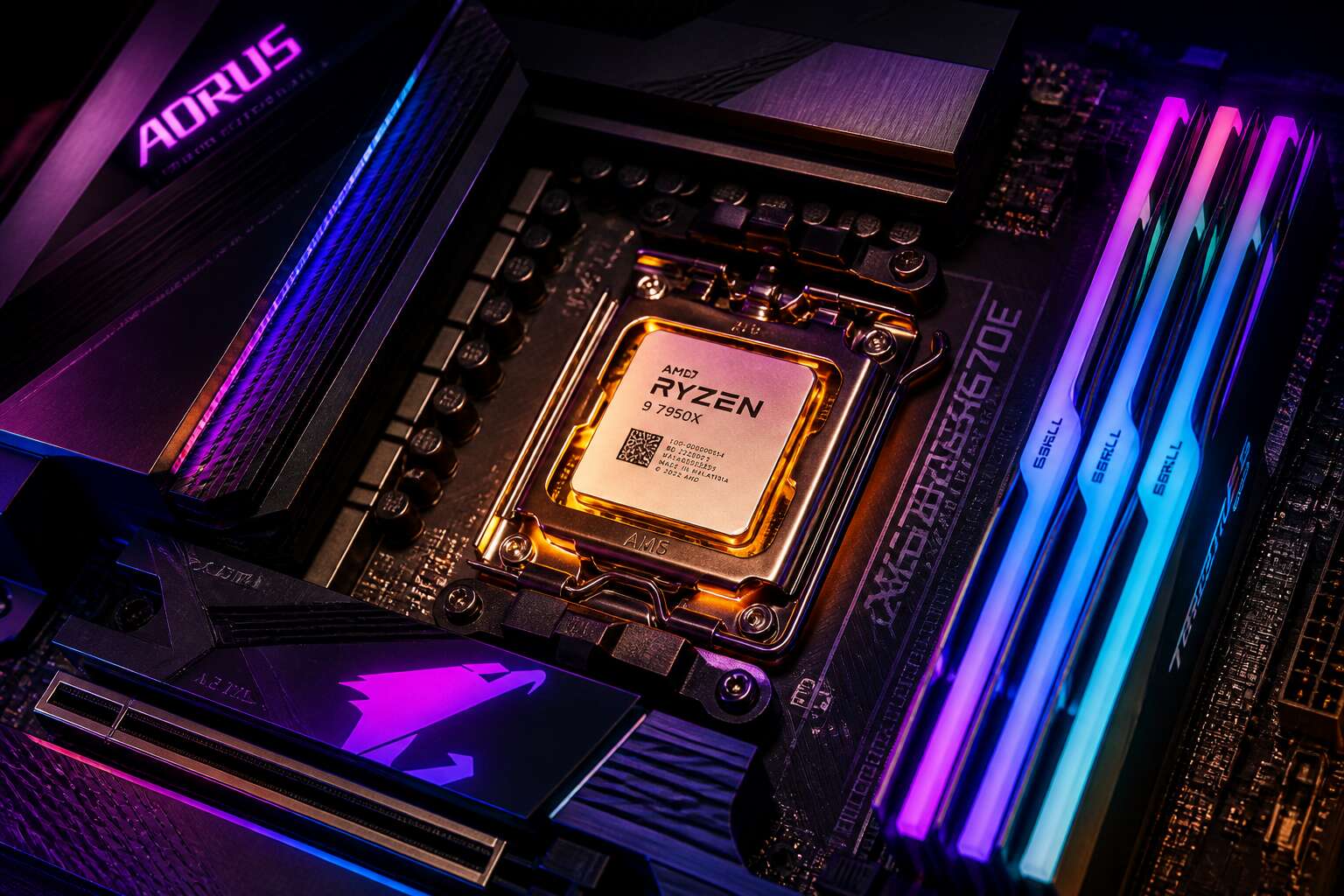
Understanding the Core Components
Defining the CPU: The Brain of the Build
A modern CPU contains billions of transistors, all working to execute billions of instructions every second. This is where the raw mathematics happens, the calculations that dictate how fast your software runs. It is the execution engine of your system. Every keystroke, every frame rendered, every complex simulation is processed here. The speed of that processing, measured in clock cycles, determines your system’s responsiveness.
The motherboard, however, is the nervous system. It connects the CPU to memory, storage, and graphics. Without the correct socket and chipset on the motherboard, your CPU is just a piece of silicon. The choice between downgrading your motherboard or cpu is a common dilemma. When the CPU is underpowered for a task, the entire system waits. This is where a thematic review of your needs is critical. Consider these signs that your processor is the bottleneck:
– Application load times stretch out.
– Video editing timelines stutter and lag.
– The system feels sluggish during everyday multitasking.
You can have the fastest storage on the market, but if the processor cannot keep up with the data transfer requests, you will never see that speed. The partnership between the motherboard’s data pathways and the CPU’s processing capability is the fundamental relationship in a computer build. Balancing the two is the entire game.
Defining the Motherboard: The Central Nervous System
A motherboard’s value becomes obvious only when the system fails to start. It distributes power, routes data, and sets the rules for every attached device. The chipset determines which storage standards, memory speeds, and expansion slots you can use. One wrong choice here can make a high-end processor useless.
- Memory channels and maximum capacity.
- PCIe lane allocation for graphics and NVMe drives.
- Power delivery stages for stable performance.
When you decide between a motherboard or cpu upgrade, the motherboard often limits your options. The CPU may be fine, but an older socket erases any future gains. I have watched many South African builders overlook this until it is too late! A smart platform choice today saves a full rebuild tomorrow.
How These Two Components Work Together
When the system boots, the CPU and motherboard stop being separate objects. They operate as one assembly. Their collaboration depends on dozens of decisions made before you press the power button. That is why choosing between a motherboard or cpu upgrade demands close attention.
Most builders fixate on core count. The motherboard determines how many cores receive stable power. The memory controller lives inside the CPU, but the board defines which memory speeds the controller can reach. I have seen enthusiasts spend heavily on a processor while neglecting the platform underneath. A motherboard or cpu pairing succeeds through electrical compatibility, not brand loyalty.
Three factors decide their compatibility:
- The VRM phase count relative to the CPU’s sustained loads.
- The layout of the memory traces and supported speeds.
- The BIOS maturity for your selected processor.
South African builders face supply shortages that push them into mismatched pairings. The machine runs, but it never fully performs. That gap is where frustration lives!
Compatibility Essentials: Socket Types and Chipsets
Socket Types Explained: LGA, PGA, and BGA
Few decisions lock your build’s future more firmly than the socket. Choosing a motherboard or cpu without verifying socket compatibility is the most common mistake in PC assembly. The socket is the physical interface between processor and board, and it dictates which chips you can ever install.
The three socket families:
- LGA (Land Grid Array): pins on the motherboard, not the CPU.
- PGA (Pin Grid Array): pins on the processor itself.
- BGA (Ball Grid Array): soldered permanently, no upgrades.
Chipsets govern PCIe lanes, memory speed, and USB support. Intel uses LGA exclusively for desktop. AMD’s current desktop platforms rely on PGA, with LGA appearing in newer generations. Pairing incompatible parts fails outright; a compatible but feature-poor chipset limits your expansion options.
Chipset Generations: Intel vs. AMD Compatibility Layers
The socket is only the first checkpoint. A motherboard or cpu may share the same physical interface and still refuse to work together. The chipset generation decides which CPUs can boot and which memory speeds get recognized.
Intel’s 700 series chipsets will not accept older processors without a BIOS update. Sometimes they never will. AMD’s AM5 platform requires a specific AGESA version; buy a newer Ryzen chip and slot it into an old board, and you get a black screen.
A practical order of checks:
- Find the CPU support list for that exact board model.
- Match the board’s shipping BIOS version to the CPU’s required minimum.
- If the version is older, ask the retailer to update it before delivery.
South African buyers face an added layer. Local motherboards often sit in warehouses for months, so a new CPU and an old board can end up paired in your cart. The box tells you the socket. It rarely tells you the BIOS revision.
BIOS and Firmware Considerations for Newer Processors
A BIOS revision can mean the difference between a machine that boots and a silent board with no display output. Newer processors ship with microcode that older boards often cannot interpret.
In South Africa, warehouse stock makes this worse. A motherboard or cpu can sit on a Johannesburg shelf for months, long past the manufacturer’s last update cycle. By the time it reaches you, the required AGESA version has moved twice. The box lists the socket. It says nothing about firmware!
Personally, I have watched this mistake unfold in builds I was asked to fix. The buyer points at the socket, both pieces match, and the screen stays black. They never suspect the firmware.
Physical Space and Cooler Mounting Compatibility
Socket compatibility gets the spotlight, yet the quiet killer is physical space. A motherboard or cpu may be perfect on paper, then a cooler’s mounting plate refuses to align. Case width, RAM height, and even USB headers dictate what fits. In South Africa, clearance issues sting because shipping costs make returns prohibitive.
- Measure the case interior depth and width.
- Compare cooler socket support with your selected parts.
- Test RAM clearance before installing fans.
Nothing ruins a build faster than a misplaced standoff or an oversized heatsink. The socket tells you which chips work, but only the case decides if they breathe.
Performance Priorities: Which Component Matters More
Gaming Performance: Frame Rates, Cores, and PCIe Lanes
A loaded gaming rig can still stutter when the wrong component is a weak link. During a heavy open world session, frame rates depend on the balance between motherboard or cpu strengths. Processors with more cores handle background tasks and game logic without bottlenecking the graphics card. Motherboards, meanwhile, manage PCIe lanes that feed data to the GPU.
Some configurations demand attention:
– A high core count CPU for simulation titles
– PCIe 4.0 or 5.0 lanes for faster SSD and GPU transfers
– A chipset that supports memory overclocking
Upgrading the processor often lifts minimum frame rates, while the motherboard sets the ceiling for that performance. Knowing where your system falls short makes the choice clear.
Productivity and Multi-Tasking: Where Bottlenecks Appear
A single rendering job can tie up a processor for hours, yet the motherboard decides whether that processor ever gets fed. In productivity and multi-tasking, the bottleneck often shifts. Spreadsheets with live queries, database indexing, or 3D simulation all demand sustained compute.
The right motherboard or cpu pairing determines whether your system keeps up or falls behind. While the CPU handles thread-heavy routines, the motherboard’s memory topology and chipset lanes govern parallel data access. If the board lacks enough PCIe channels, NVMe drives and capture cards compete. Many users overupgrade the processor, only to run into I/O limits because the chipset throttles. The difference surfaces when you check task manager during a multi-layered workflow.
Overclocking Capabilities: CPU Limits vs. Power Delivery
Of course. Here is the next section of the article, focusing on the priorities of overclocking and power delivery.
—
Chasing higher clock speeds is an ancient pursuit for many builders, and the ritual begins with a straightforward question: does the processor or the board hold the key to the kingdom? A processor might arrive with an unlocked multiplier, whispering promises of glorious performance. Yet, that same silicon can be rendered docile if the motherboard lacks the electrical spine to support the demand. The hidden battleground is not the chip itself, but the power delivery system that sits mere millimetres away, a quiet assembly of chokes, capacitors, and MOSFETs that transforms raw electricity into a stable lifeblood.
The processor dictates its own frequency limits based on silicon quality and thermal headroom. Pushing past the factory boost clock often yields diminishing returns after a certain point, a wall built by physics. However, the motherboard is the very foundation that decides if you can even approach that wall. A board with a modest power stage configuration might throttle under sustained load to protect its components, creating a frustrating scenario where the CPU asks for more, and the board simply cannot comply. In this dynamic, the motherboard often becomes the true determinant of an overclock’s success.
When selecting a platform for intensive workloads, the power delivery system warrants as much scrutiny as the processor’s core count. I examine a few crucial elements during my evaluation:
- The number and quality of the power stages, which handle the voltage regulation under stress.
- The capacity of the VRM heatsinks to dissipate the intense heat generated by high current draw.
- The quality of the capacitors and chokes, which filter the power for stability.
A builder might purchase the highest-tier processor within their budget, but neglecting the board’s power capacity creates a silent bottleneck that no amount of software tweaking can resolve. Many users find themselves upgrading the motherboard or cpu around a specific feature set, only to discover the board’s power ceiling is reached long before the chip’s potential is exhausted. The quest is to find equilibrium, a place where the processor can stretch its legs without the motherboard holding it back. Premium power delivery is not about aggressive marketing, but about ensuring the heart of the system beats with a steady and unyielding rhythm.
Memory Speed and Capacity: The Hidden Role of the Motherboard
Most builders obsess over the processor’s clock speed, yet the memory subsystem quietly decides how much of that power becomes usable. The motherboard or cpu pairing determines the memory speed ceiling, a constraint etched into the board’s trace layout and BIOS. You can install the fastest RAM kit on Earth, but a weaker board will downclock it without mercy.
Memory capacity follows a similar logic. The board’s slot configuration and rank support dictate how much data you can hold in flight. I have seen systems where the CPU begged for more bandwidth, only for the motherboard to refuse the request.
- Trace quality influences signal integrity at high frequencies.
- Slot count limits total capacity and dual-rank operation.
I/O Connectivity: USB, M.2 Slots, and Expansion Potential
The I/O connectivity landscape is where the motherboard or cpu decision becomes tangible, especially when you consider how many devices you actually plug into a machine. Every USB port, every M.2 slot, and every PCIe lane traces back to the chipset’s allocation logic. A processor might have immense compute power, but the board’s controller dictates how quickly your external drive, your capture card, or your NVMe storage can communicate with the rest of the system. I have watched builders pair a flagship processor with a budget board and then wonder why their high-speed external SSD transfers crawl.
The sheer number of available lanes also matters when you plan for the future. You might think a single graphics card is enough today, but what about a second card, a RAID controller, or a high-end audio interface? The physical expansion potential is locked in by the board’s design and the chipset’s lane budget. Here is a quick breakdown of what to check:
– Total number of USB 3.2 Gen 2 ports on the rear panel
– Amount of M.2 slots and whether they support PCIe 4.0, 5.0, or SATA modes
– Number of full-length PCIe x16 slots with actual electrical wiring
A board with fewer lanes forces you to choose between components. For a build that must last several years, the motherboard or cpu pairing that provides ample I/O capacity is the one that saves you from frustrating upgrades later. The chipset model matters far more than the CPU’s core count when your workload depends on moving data quickly between many peripherals.
Upgrade Paths and Future-Proofing Decisions
Starting with a New CPU vs. Keeping an Older Motherboard
Replacing the CPU before the motherboard is a gamble that pays off only when the platform has room to grow. Immediate performance gains are real, but older boards often cap memory speeds or lack firmware updates for newer processors. Keeping the board while swapping the CPU saves money today, yet it postpones the socket migration that eventually becomes unavoidable. Platform longevity varies sharply between manufacturers. Some sockets survive multiple CPU generations, while others demand a fresh board after two releases.
Weigh these constraints before committing:
– Whether the current board’s power delivery handles the new processor’s demands
– If the firmware can support the specific CPU model
– How many future upgrade steps the socket has left
The motherboard or cpu decision is a timeline question. The correct order depends on how soon you plan to upgrade again and what the current platform can still offer.
Platform Longevity: When to Invest in a Fresh Socket
Seven of ten South African builders keep their current socket for at least two processor generations. In that time, memory standards shift, power delivery demands rise, and the partnership between components sours. A fresh socket, purchased early, avoids the decay entirely.
Platform longevity follows a rhythm. A new socket arrives with a promise of three releases, but manufacturers often cut that to two when the silicon outpaces the board. Watch for the tell-tale sequence!
- New processors require firmware that the old board never receives
- Memory speeds climb beyond what the old topology can feed
- Connectivity standards leave the previous platform stranded
When that sequence completes, the motherboard or cpu decision resolves itself. Buying into the new socket early saves you from purchasing twice.
PCIe 4.0 and 5.0 Readiness for Next-Gen Components
PCIe 5.0 doubles the bandwidth of the previous generation. A graphics card or NVMe drive built for PCIe 5.0 runs at half pace in a PCIe 4.0 slot. South African builders now face this exact trade-off when they pick a new platform.
Future-proofing is a matter of matching the PCIe version to your upgrade timeline. A platform kept for three years needs PCIe 5.0 readiness. A shorter cycle can survive on PCIe 4.0! I check these details on every board I recommend:
- Confirm how many PCIe 5.0 lanes the processor supplies.
- Check whether the primary M.2 slot draws from the CPU or the chipset.
- See if shared lanes throttle the graphics card when both slots are in use.
Current graphics cards run fine on PCIe 4.0. Next-generation components will not. The motherboard or cpu you choose today decides whether you upgrade later or rebuild completely.
Power Delivery Phases and Long-Term Stability
Power delivery phases count more than the marketing stickers suggest. A motherboard with eight legitimate phases delivers steady voltage to the processor during long render sessions. Sixteen phases split across two groups of eight still counts as eight. I inspect the VRM controller before recommending any motherboard or cpu pairing.
South African builders face a unique constraint: load shedding causes voltage spikes when the grid returns. A robust power delivery design absorbs these surges. Weak phases degrade over time and cause system crashes a year later. The upgrade path depends on whether your board can power a higher-tier CPU without overheating.
- Count the actual phases, not the doubled marketing numbers.
- Verify the VRM heatsink size matches the CPU power draw.
- Check if the socket accepts the next generation of processors.
Future-proofing a motherboard or cpu platform means leaving headroom for both power and performance.
Budget Allocation: Where Your Money Matters Most
Entry-Level Builds: Prioritizing a Balanced Pair
R6,000 feels like a fortune to a first-time builder, yet it disappears the moment you price a motherboard or cpu pairing. The common mistake is throwing 80% at the processor and grabbing the cheapest board available. That leaves you with a CPU that cannot reach rated speeds because the board limits memory frequency and throttles power delivery.
Regarding the combined budget, allocate about 60% to the CPU for entry-level gaming. For workstation duties, flip that split, as the board’s expansion and stability become the priority.
A simple priority checklist works well:
- Confirm the CPU’s maximum power draw.
- Select a board with enough power phases for that draw.
- Spend leftovers on RAM, not gimmicks.
This method keeps the total below R8,000 and avoids expensive replacements later.
Mid-Range Choices: Upgrading the CPU Without Changing the Board
At the mid-range tier, the rules change. Spending between R8,000 and R15,000 on a motherboard or cpu pairing demands a different allocation strategy. The processor takes roughly half the budget, but the board needs enough voltage regulation headroom for the next CPU you will install a few years later. That foresight prevents a costly platform swap.
Upgrading the CPU while keeping the current board depends on three factors:
- The socket must match the new processor’s physical layout.
- The BIOS version must support the new CPU series.
- The memory overclocking profile must still hit the rated speeds.
I run a Ryzen 5000 series chip on a B450 board with no issues. That only worked because I verified the BIOS revision and memory profile before spending a cent. The money saved on a new board went into faster storage.
High-End Builds: Premium Chipsets and Enthusiast Processors
A Ryzen 9 or Core i9 running on a weak board is a waste of rand. Drop R25,000 on a motherboard or cpu pair and the processor takes about 60 percent of that total. A premium chipset such as X870 or Z890 gives you PCIe 5.0, USB4, and enough voltage regulation to handle sustained workloads without throttling.
Here is what I check before committing that kind of money:
- Power delivery rated for 100 amps or more
- PCIe 5.0 for the graphics card and primary M.2 slot
- BIOS flashback so a future processor works without an older CPU
The motherboard or cpu decision here is about headroom, not price. You buy a board that outlives the processor, then slot in a newer chip in three years. That saves you from rebuilding when you upgrade the motherboard or cpu later.
Cost-Performance Ratio: Identifying Overvalued Features
When I guide someone through a budget build, I separate need from want. The processor determines how fast work gets done, but the motherboard or cpu pairing sets the ceiling for upgrades. If your budget caps at R12,000, buying a flagship CPU leaves nothing for a board with stable power delivery. Allocate more to the component that affects daily tasks immediately.
Cost-performance ratio gets distorted by premium features you never use. A board with three M.2 slots and Wi-Fi 7 adds R3,000 to the price. That money could buy a better cooler or a larger SSD. For most South African users, a mid-tier processor with a solid B650 or B760 board gives the best return.
– Check what your primary software actually utilises.
– Determine whether the motherboard or cpu upgrade offers more real-world gain.
Look for the sweet spot where processor and board cost roughly equal. That balance avoids wasting money on features that benchmarking software rewards but your applications do not.
Reusing Parts: When Ignoring a New Board Actually Makes Sense
Budget allocation should follow workload, not marketing tiers. A balanced build spends on the motherboard or cpu only after confirming which one limits your daily tasks. If your current board already supports the processor you want, reusing it makes sense. That saved money can go toward a GPU or storage.
When ignoring a new board actually makes sense:
– Your existing board has enough PCIe lanes and M.2 slots.
– The chipset supports the new CPU with a simple BIOS update.
– You are upgrading from an older CPU to the same generation top tier.
Reusing parts here avoids needless spending, keeping the total cost low without sacrificing stability. The decision comes down to whether the old platform still delivers the features you rely on, not whether a box says it’s newer.
0 Comments